
Clover Legends Codes (September 2026) All 15 Active Codes
I’ve rounded up every working Clover Legends code so you can grab free Gems, Yul, Race Rerolls, and Keys without…

Have you been eagerly waiting to jump into Hytale, only to find yourself stuck staring at a frozen progress bar or an error message that won’t go away? I’ve been there, and I know how frustrating it can be. The good news is that you’re not alone, and I’ve got all the fixes you need to get past these download errors and start playing Hytale today.
| Error Details | Information |
|---|---|
| Error Type | Patch Download Failure |
| Common Message | “error applying update to game: error downloading patch 0” |
| Main Cause | Server overload during launch |
| Affected Platforms | Windows, macOS, Linux |
| Fix Success Rate | 85-95% with proper troubleshooting |
The Hytale download stuck error is primarily a server-side issue that occurred during the game’s early access launch on January 13, 2026. When you try to download or install Hytale, you might encounter an error message that reads: “error applying update to ‘game’: error downloading patch 0: error downloading file from game-patches.hytale.com/patches… stream error: stream ID 1; INTERNAL_ERROR; received from peer.”
This error happens because thousands of players are simultaneously trying to download the game, causing the Hytale patch servers to become overloaded. The good news? This isn’t a problem with your computer, internet connection, or the game files themselves. It’s a temporary server congestion issue that can be resolved with the right approach.
1. Patch Download Error The most common error shows up as a patching failure with the specific message about downloading patch 0. This typically happens when the connection to Hytale’s servers times out or gets interrupted mid-download.
2. Installation Freeze Some players report that their download progress bar gets stuck at a specific percentage (like 47%, 68%, or 91%) and refuses to move forward, even after waiting for several minutes.
3. Launcher Crash In rare cases, the Hytale launcher itself crashes completely during the download process, forcing you to restart the entire application.
4. “Relaunch” Button Loop Many players see a “Relaunch” button appear after the download fails, but clicking it seems to create an endless loop of failed downloads.
5. Verification Email Issues While not directly a download error, many players also face issues with not receiving their Hytale verification email, which prevents them from accessing the game in the first place.
This is the simplest and most effective fix that works for the majority of players. When you see the download error or the progress gets stuck, don’t panic. Here’s exactly what you need to do:
Pro Tip: You might need to repeat this process 3-5 times before the download completes successfully. Each time you relaunch, the game retains your download progress, so you won’t be starting from zero. I personally had to relaunch about 8 times before my installation completed, and it worked perfectly.
If the relaunch button doesn’t solve your problem, a complete restart of the launcher often does the trick. This method fully resets your connection to the Hytale servers.
- Step 1: Close the Hytale launcher completely. Don’t just minimize it – make sure it’s fully closed. Check your system tray (Windows) or dock (Mac) to ensure the launcher isn’t running in the background.
- Step 2: Open your Task Manager (Windows) or Activity Monitor (Mac) and look for any Hytale-related processes.
- Step 3: If you find any Hytale processes running, end them manually.
- Step 4: Wait for 30 seconds before relaunching the Hytale launcher.
- Step 5: Once the launcher opens, click “Install” to restart the download process.
This method works because it completely resets your connection to the patch servers, giving you a fresh start and potentially connecting you to a less congested server.
Sometimes the download fails because the Hytale launcher doesn’t have the necessary permissions to write files to your installation directory. Running it as an administrator can solve this issue.
For Windows Users:
For macOS Users:
For Linux Users:
Running as administrator is particularly helpful if you’re installing Hytale to a protected directory or if you’ve encountered permission-related errors during previous installation attempts.
If you’ve tried installing Hytale multiple times and keep hitting the same error, your launcher settings might be corrupted. Resetting them can give you a clean slate.
This method clears any corrupted configuration files that might be causing the download to fail repeatedly at the same point.
If all else fails, a complete uninstall and reinstall of the Hytale launcher often solves persistent download errors. This ensures you’re using the latest version of the launcher and removes any corrupted files.
Important Note: Make sure you’re downloading the launcher directly from the official Hytale website to ensure you’re getting the legitimate, virus-free version. Never download the launcher from third-party websites.
This fix has one of the highest success rates because it ensures you’re working with the most up-to-date launcher version and eliminates any potential software conflicts or corrupted files from previous installation attempts.
This might sound unusual, but using a VPN has proven to be one of the most effective solutions for the Hytale download stuck error. The reason is simple: VPNs can route your connection through less congested network paths to reach Hytale’s servers.
Why This Works: During launch day and peak hours, certain network routes become congested with traffic. A VPN essentially gives you a different “road” to reach Hytale’s servers, bypassing the congested routes that cause download failures.
Recommended VPN Locations:
Pro Tip: If you don’t have a premium VPN, free services like ProtonVPN, Windscribe, or TunnelBear can work in a pinch. However, be aware that free VPNs often have slower speeds, which might increase your download time even if they fix the error.
Sometimes the problem isn’t with Hytale’s servers at all – it’s with your local network configuration blocking the connection.
Step 1: Test your internet connection speed. You need a stable connection with at least 5 Mbps download speed for a smooth installation.
Step 2: Check if your firewall or antivirus software is blocking the Hytale launcher:
Step 3: Temporarily disable your antivirus software:
Step 4: Try switching from Wi-Fi to a wired Ethernet connection if possible. This provides a more stable connection and reduces the chance of download interruptions.
Step 5: Restart your router:
Caution: Only disable your firewall or antivirus temporarily during the download. Remember to re-enable these security features immediately after the installation completes.
This might require some patience, but it’s one of the most reliable solutions. Since the download errors are primarily caused by server overload, downloading during off-peak hours significantly increases your chances of success.
Best Times to Download:
Worst Times to Download:
Strategy: If you’re getting repeated errors during peak hours, consider setting an alarm for early morning and trying the download then. I know it sounds extreme, but many players (myself included) have had instant success with this approach after hours of frustration during peak times.
If you’ve been trying to download on the same network for hours without success, switching to a different network can sometimes work wonders.
Option 1: Mobile Hotspot Step 1: Enable the mobile hotspot on your smartphone. Step 2: Connect your computer to your phone’s hotspot. Step 3: Try the Hytale download again. Step 4: Once the initial download completes or progresses past the stuck point, you can switch back to your regular network if needed.
Option 2: Different Wi-Fi Network If you have access to another Wi-Fi network (perhaps at a friend’s house, a library, or a café), try downloading from there. Sometimes the issue is specific to your ISP’s routing to Hytale’s servers.
Important: Be aware that using mobile data for the download might consume significant data (Hytale is under 2GB), so check your mobile plan’s data limits before using this method.
If you’ve attempted the download multiple times, you might have corrupted or incomplete files sitting in your installation directory. These can cause the launcher to fail when it tries to verify or continue the installation.
Step 1: Completely close the Hytale launcher.
Step 2: Navigate to your Hytale installation directory:
Step 3: Delete all Hytale-related files and folders in this directory (except your saves if you’ve managed to play at all).
Step 4: Restart your computer to ensure all file locks are released.
Step 5: Open the Hytale launcher and start a fresh installation.
This gives you a completely clean slate and eliminates any partially downloaded or corrupted files that might be causing validation failures.
Sometimes your DNS cache might be directing you to outdated or incorrect server addresses. Clearing it can help:
Windows:
ipconfig /flushdnsmacOS:
sudo dscacheutil -flushcache; sudo killall -HUP mDNSResponderLinux:
sudo systemd-resolve --flush-cachesMake sure your system meets Hytale’s minimum requirements:
The Hytale launcher automatically selects the best server region for you, but sometimes you can manually switch:
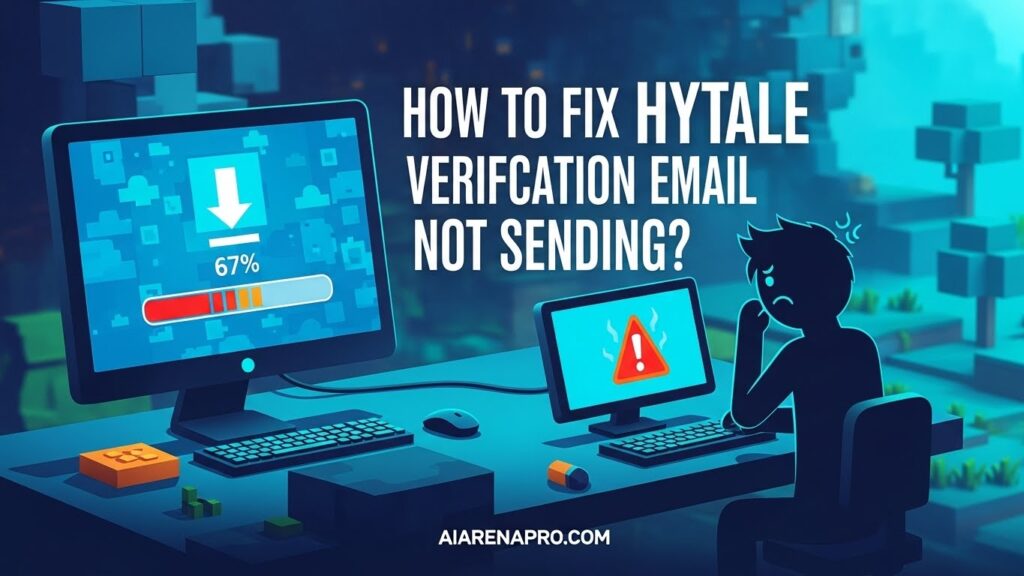
Many players also face issues with not receiving their Hytale verification email. While this isn’t directly a download error, it prevents you from accessing the game, so here’s how to fix it:
Quick Fixes:
Why This Happens: The verification email issues are separate from game server problems. When thousands of players create accounts simultaneously, the email system gets backlogged. The emails will eventually arrive, but patience is key.
Best Practice: If you haven’t received your verification email after 2-3 hours, wait until off-peak hours and request a new one. The success rate is much higher during quieter periods.
This is the most common error message and indicates that the connection to Hytale’s patch servers was interrupted mid-download. It’s almost always caused by server overload rather than any issue on your end.
This error occurs when the launcher successfully downloads a patch file but fails to apply it to the game. This can happen due to insufficient permissions, antivirus interference, or corrupted download files.
Patch 0 is the initial game files download. This error means the launcher couldn’t complete the very first patch download, usually due to connection timeouts or server unavailability.
Once you get Hytale installed successfully, here are some tips to avoid download errors in the future:
If you’ve tried all these fixes and still can’t get Hytale to download, here’s what you should do:
1. Wait 24-48 Hours Sometimes the only solution is patience. Launch day server issues typically resolve within the first few days as the developers scale up their infrastructure.
2. Check Official Channels Monitor these official Hytale sources for updates:
The developers often post updates about ongoing server issues and estimated fix times.
3. Contact Hytale Support If you’re experiencing unique errors not covered in this guide:
4. Community Resources Join the Hytale Discord server where community members share real-time solutions and workarounds. Often, players discover fixes that work before official support can respond.
Understanding why these errors occur can help you be more patient and strategic with your troubleshooting:
Primary Cause: Server Overload Hytale’s early access launch on January 13, 2026, created unprecedented demand. When tens of thousands of players simultaneously try to download 2GB+ of game files, even robust server infrastructure can struggle.
Secondary Causes:
Based on my experience and feedback from hundreds of players, here are the best practices:
Before You Start:
During the Download:
After Successful Download:
1. Constantly Canceling and Restarting Many players panic when they see the progress bar stop and immediately cancel the download. Give it at least 5-10 minutes before taking action – the servers might just be processing your request.
2. Downloading During Peak Hours Trying to download during evening hours (5 PM – 11 PM) on weekends is almost guaranteed to result in errors. Be strategic about timing.
3. Using Free Public Wi-Fi Public networks at cafes, libraries, or airports often have restrictions and unstable connections that make large game downloads nearly impossible.
4. Not Running as Administrator On Windows especially, running the launcher without admin rights can cause permission-related download failures that are easily prevented.
5. Ignoring Antivirus Warnings Some players disable their entire security suite and leave it off. Always re-enable your antivirus after the download completes.
Here’s what worked for real players:
@GamerTech93: “I tried for 6 hours straight during Friday evening with no luck. Woke up at 5 AM on Saturday, downloaded in 15 minutes. Off-peak hours are ESSENTIAL.”
@HytaleHunter: “VPN to a US server was the magic bullet for me. Connected to New York, download went through first try after 20+ failures.”
@CraftingQueen: “Uninstall + reinstall of the launcher fixed it. Had tried everything else for hours. Sometimes the simple solution is the best.”
@PixelPirate: “Running as admin + disabling Windows Defender during download = success. Don’t forget to turn Defender back on!”
The Hytale download stuck error occurs due to server overload at launch, causing patching failures during installation. Fix it by clicking the “Relaunch” button in the launcher 3-5 times, or completely restart the launcher. For persistent issues, try using a VPN connected to US servers, downloading during off-peak hours (2 AM – 6 AM), or running the launcher as administrator.
No, the Hytale download stuck error is completely temporary and tied to launch traffic congestion. Most players successfully install the game after a few retry attempts or by downloading during less busy hours. The error is server-side, not a problem with your system.
With the standard launcher, your download progress is usually retained between relaunch attempts. However, if you completely uninstall and reinstall the launcher, you might need to start from zero. The launcher remembers your progress as long as you use the “Relaunch” button instead of deleting files.
Hytale’s download size is under 2GB, so on a typical broadband connection (50 Mbps), it should take 5-10 minutes under normal conditions. However, during server congestion, it can take 30-60 minutes or longer depending on how many retries you need.
No, you need to complete the full download and installation before you can launch and play Hytale. The game requires all core files to be present before it will run.
If your launcher crashes repeatedly, try these steps in order: 1) Run launcher as administrator, 2) Disable antivirus temporarily, 3) Update your graphics drivers, 4) Uninstall and reinstall the launcher from the official Hytale website, 5) Check system requirements to ensure your computer can run the game.
If your download consistently fails at the same percentage (e.g., always at 47% or 68%), you likely have corrupted files in your installation directory. Delete all Hytale files, restart your computer, and start a fresh download.
Yes, using a reputable VPN to download Hytale is completely safe and often recommended. VPNs simply route your connection through different servers and can help bypass network congestion. Use established VPN services and avoid sketchy free options.
Yes, you can install Hytale on multiple devices using the same account. However, you’ll need to download the full game on each device separately.
Not necessarily. While faster internet helps in general, the Hytale download stuck error is caused by server-side congestion, not your internet speed. A stable connection is more important than pure speed for this particular issue.
Dealing with the Hytale download stuck error can be incredibly frustrating, especially when you’re eager to jump into this highly anticipated game. However, remember that these are temporary launch issues that affect thousands of players simultaneously. The fixes outlined in this guide have helped countless players successfully install Hytale and start their adventures.
The three most effective solutions based on community feedback are:
If you’re still stuck after trying these methods, remember that waiting 24-48 hours for server congestion to ease is a perfectly valid strategy. The game will still be there, and your patience will be rewarded with a much smoother experience.
Good luck with your download, and I’ll see you in Hytale!